> For the complete documentation index, see [llms.txt](https://docs.theseaai.com/llms.txt). Markdown versions of documentation pages are available by appending `.md` to page URLs; this page is available as [Markdown](https://docs.theseaai.com/main/jp/tasuku/tatchi.md).
# タッチ
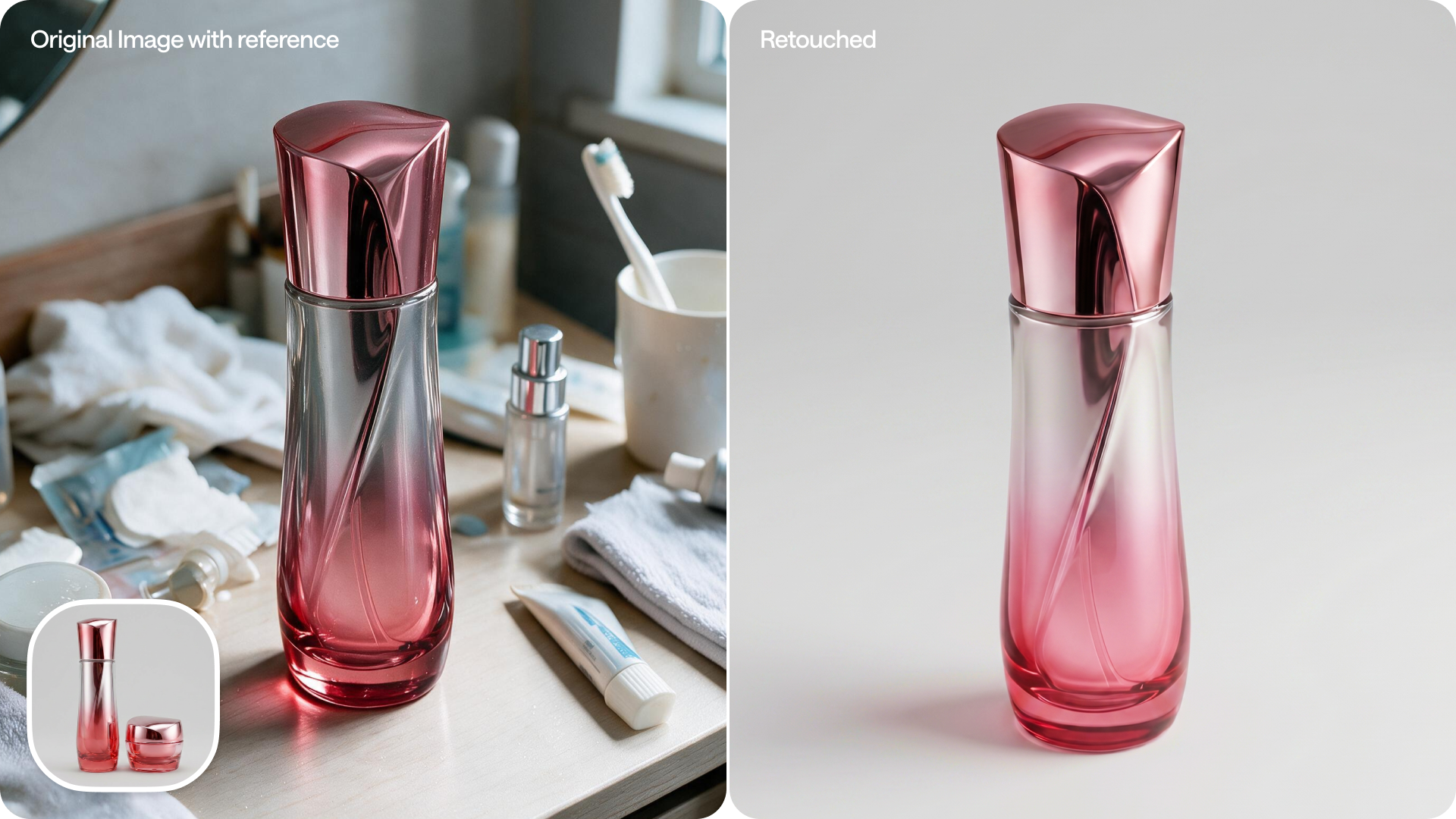
1回の生成ステップで、自動画像補正を適用します。タッチは、ライティング、色のバランス、形状、表面のディテール、髪、背景の清潔感を調整しながら、構図はそのまま保ちます。
***
#### 商品画像をタッチする
#### 髪をタッチする
***
## インタラクティブチュートリアル
{% hint style="info" icon="language" %}
**チュートリアルの言語を変更する方法**\
チュートリアルは既定で英語で表示されます。別の言語でこのチュートリアルを表示するには、右上隅にカーソルを合わせて、選択してください :language: **言語**.
{% endhint %}
{% @arcade/embed url="" flowId="amHhRqnkiRXfvdtIMe9r" %}
***
## 使い方
{% stepper %}
{% step %}
#### 「タッチ」を選択します
左側のタスクメニューで、 **タッチ**.
これで、現在のシーンのタッチワークスペースが開きます。
{% endstep %}
{% step %}
#### 商品画像をアップロードする
商品画像は前景要素として使用されます。
画像は次の方法でアップロードできます。
* 選択する **画像をアップロード** シーン内で
* コンピューター上のフォルダーから画像をドラッグ&ドロップする
* 画面左下のライブラリパネルから画像をドラッグ&ドロップする
アップロードすると、商品がシーンに表示されます。
{% endstep %}
{% step %}
#### 角度をそのままにするか変更するか
〜内の **商品設定** 右側パネルの該当セクションでは、タッチはデフォルトで商品の元の角度を保持します。
オンにする **角度の変更を許可** タッチでも角度を調整したい場合。
{% endstep %}
{% step %}
#### 参照画像を追加する
引き続き **商品設定**、商品の参照画像を追加できます。
選択 **+ 画像を追加** 参照画像をアップロードします。参照画像を使うと、タッチが商品のディテールをより正確に保てます。
この手順は任意です。
{% endstep %}
{% step %}
#### 出力数を選択する
右側の生成タッチ設定パネルでは:
* 生成するバリエーション数を選択します。
* 一度に最大2シーンまで生成できます。
{% endstep %}
{% step %}
#### 生成エフォートを選択する
の横で **生成** 矢印を選択して、エフォートのドロップダウンを開きます。詳細は [#choose-generation-effort](#choose-generation-effort "mention")
* **標準** がデフォルトで選択されています
* **精密** 細かいディテールや複雑な構造を持つ商品向け
{% endstep %}
{% step %}
#### 生成
すべての設定を確認したら、 **生成**.
生成されたシーンはプレイグラウンドに表示されます。
{% endstep %}
{% endstepper %}
***
## 商品設定
商品設定では、元の角度を維持するかどうかを選べるほか、ディテールを正確に保つために参照画像も追加できます。特に、形状が複雑な商品や細部の多い商品に便利です。
#### **商品の元の角度を維持する(デフォルト)**
希望どおりの角度で、すでに商品を撮影済みの場合に使います。
#### **タッチに角度を変更させる**
よりすっきりした、または一貫性のある角度をタッチに見つけてほしい場合に使います。
#### **参照画像で商品のディテールを合わせる**
商品に細かなディテールや複雑な形状があり、タッチだけではうまく再現できない場合に使います。
{% hint style="info" %}
最適な結果を得るには、 **精密** 複雑な商品の参照画像を使う場合は、生成エフォートを選択してください。
{% endhint %}
***
### タッチの生成エフォート
生成エフォートでは、生成前にタッチが画像をどの程度詳しく分析するかを調整できます。そのため、複雑な商品の細部もそのままきれいに反映されます。
エフォートレベルは2段階あります:
* **標準** (デフォルト): ほとんどの生成に最適です。所要時間は約60秒です。
* **精密**:画像を細かく分析するため、複雑な商品に最適です。所要時間は約140秒です。
***
## 髪のタッチ
Beachsideは画像内の髪を認識し、自動でタッチします。浮き毛を整え、ツヤを高め、ボリューム感を加えます。
***
## よくある質問
参照画像は何枚追加できますか?また、何に役立ちますか?
* 商品ごとに最大3枚の参照画像を追加できます。
* 参照画像を使うと、タッチが商品の実際のディテールに合わせやすくなるため、追加の指示やプロンプトは不要です。
角度がデフォルトで固定されているのはなぜですか?
タッチはデフォルトでアップロードした写真の角度を維持するため、撮影した内容と商品の見た目をそろえやすくなります。オンにすると **角度の変更を許可** タッチに角度調整を任せたい場合はこちらを使います。
---
# Agent Instructions
This documentation is published with GitBook. GitBook is the documentation platform designed so that both humans and AI agents can read, navigate, and reason over technical content effectively. Learn more at gitbook.com.
## Querying This Documentation
If you need additional information that is not directly available in this page, you can query the documentation by asking a question.
Perform an HTTP GET request on the following URL with the `ask` and `goal` query parameters:
```
GET https://docs.theseaai.com/main/jp/tasuku/tatchi.md?ask=&goal=
```
`ask` is the immediate question: it should be specific, self-contained, and written in natural language.
`goal` is what the user is ultimately trying to achieve, the reason they need the answer. Sharing it helps GitBook give you a better, more relevant answer. A goal is most helpful when it describes the outcome the user wants rather than restating the question. For example, with `ask=how do I create an API token`, a goal like `automate deployments from our CI pipeline` lets GitBook tailor the answer to that use case.
The response will contain a direct answer to the question and relevant excerpts and sources from the documentation.
Use this mechanism when the answer is not explicitly present in the current page, you need clarification or additional context, or you want to retrieve related documentation sections.